# How to install and addon in Soffid 3 and 4

## Installation

### Introduction

To use an addon in Soffid, you must download and install it in the Console. There are two ways to do this.

<span style="color: #a6d100; font-weight: bold; font-size: 18px;">1. </span> The first option is to use the **Soffid 4 marketplace**. You can download and upload it directly from the [Licence and plugin](https://bookstack.soffid.com/books/soffid-4-reference-guide/page/license-and-plugin "License and plugin") page.

<span style="color: #a6d100; font-weight: bold; font-size: 18px;">2. </span>The second option is to download the file from the Soffid **download** page and then **upload** it to the Console.

### Soffid 4 marketplace

<p class="callout success">Soffid 4 allows you to install and update plugins through the new Addons marketplace feature.</p>

<p class="callout warning">To access the marketplace, you must have a valid token to use Soffid and have configured the Console via https. Please check the [License and plugin](https://bookstack.soffid.com/books/soffid-4-reference-guide/page/license-and-plugin#bkmrk-actions "License and plugin") page.</p>

<span style="color: #a6d100; font-weight: bold; font-size: 18px;">1.</span> Please **log in** to IAM Console.

<p class="callout info">You need to be an **administrator** user of the Soffid console or a user with permission to upload addons.</p>

<p class="callout info">It is recommended to upload the addons to the **master**, this is the way to maintain updated all, master and tenants if there are.</p>

<span style="color: #a6d100; font-weight: bold; font-size: 18px;">2.</span> In the Soffid console, please **go to** the [License and plugin](https://bookstack.soffid.com/books/soffid-4-reference-guide/page/license-and-plugin "License and plugin") page.

`Main Menu > <span class="link" id="bkmrk-configuration">Configuration</span> > Global Settings > License and plugin`

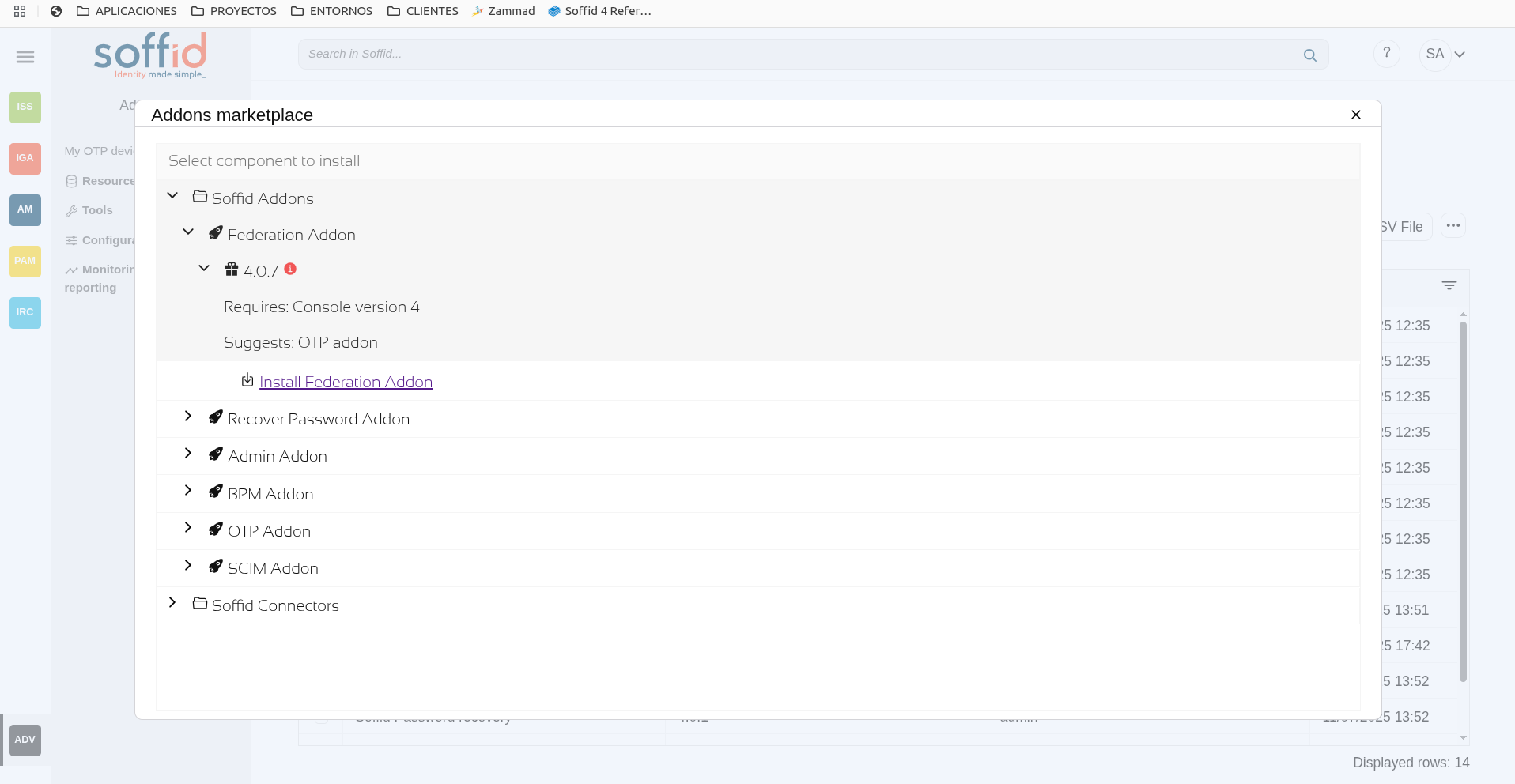
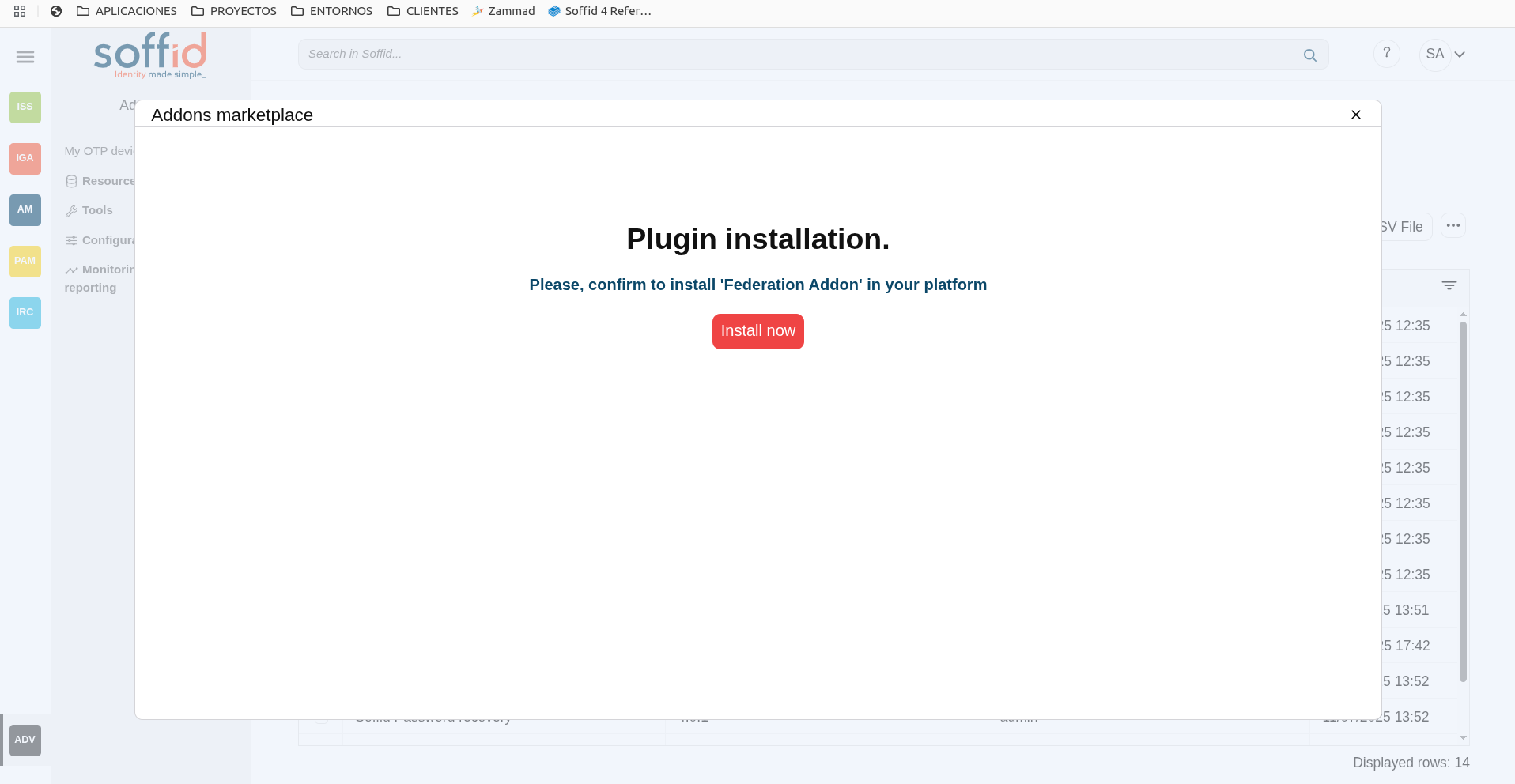
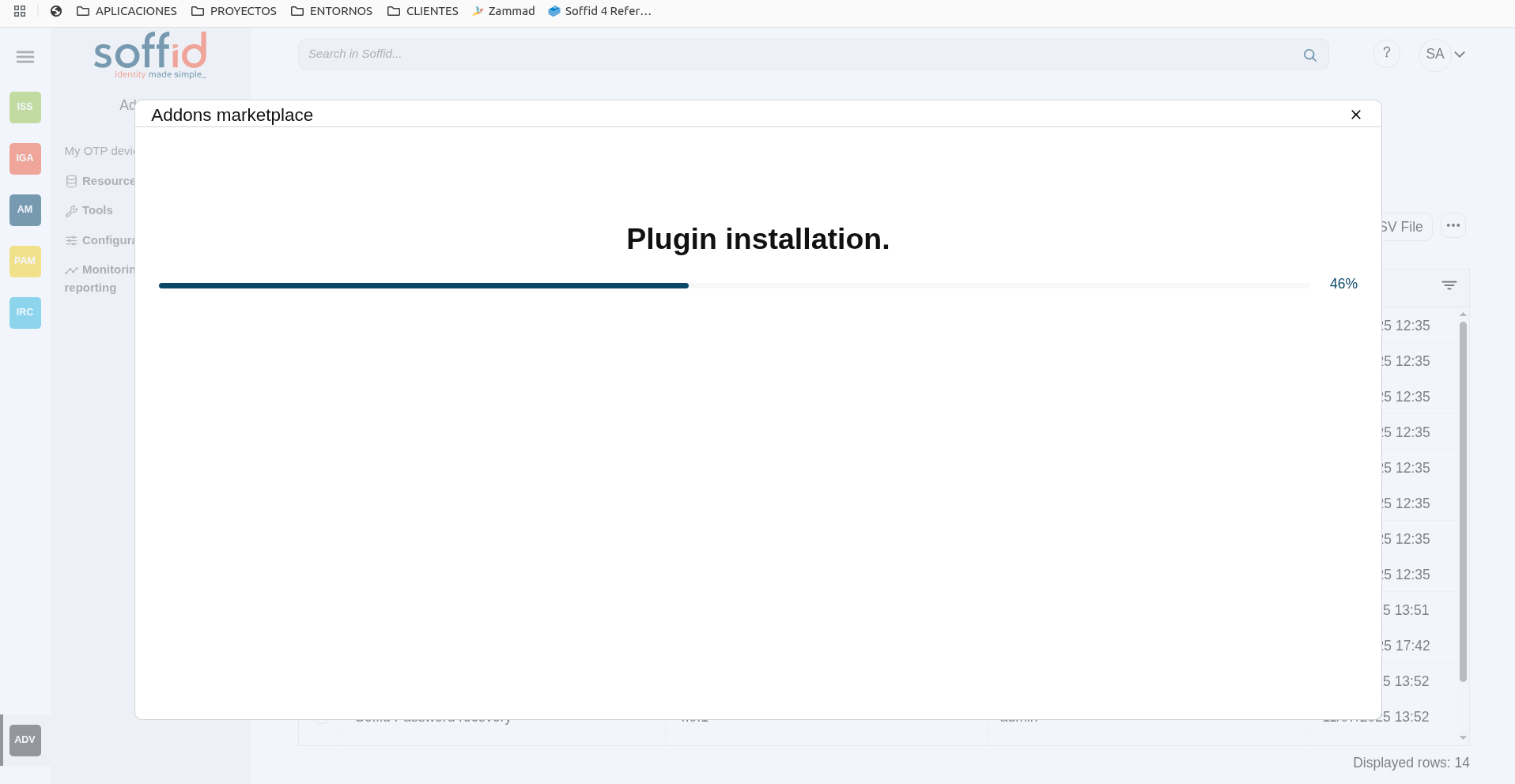
<span style="color: #a6d100; font-weight: bold; font-size: 18px;">3.</span> Then, click the add button "**Add new**" button, open the "Soffid Addons" secction and select the "Instlla addon" option, Soffild will upload the addon file.

<details id="bkmrk-image-2"><summary>Image</summary>

[![image.png](https://bookstack.soffid.com/uploads/images/gallery/2025-08/scaled-1680-/zT1zIAZQODssapPc-image.png)](https://bookstack.soffid.com/uploads/images/gallery/2025-08/zT1zIAZQODssapPc-image.png)

[![image.png](https://bookstack.soffid.com/uploads/images/gallery/2025-08/scaled-1680-/3uHXtG1pAm5kUzIA-image.png)](https://bookstack.soffid.com/uploads/images/gallery/2025-08/3uHXtG1pAm5kUzIA-image.png)
[![image.png](https://bookstack.soffid.com/uploads/images/gallery/2025-08/scaled-1680-/uw0ef7PG97IxCUUu-image.png)](https://bookstack.soffid.com/uploads/images/gallery/2025-08/uw0ef7PG97IxCUUu-image.png)
[![image.png](https://bookstack.soffid.com/uploads/images/gallery/2025-08/scaled-1680-/SnyiSzFTnWhDKIWL-image.png)](https://bookstack.soffid.com/uploads/images/gallery/2025-08/SnyiSzFTnWhDKIWL-image.png)
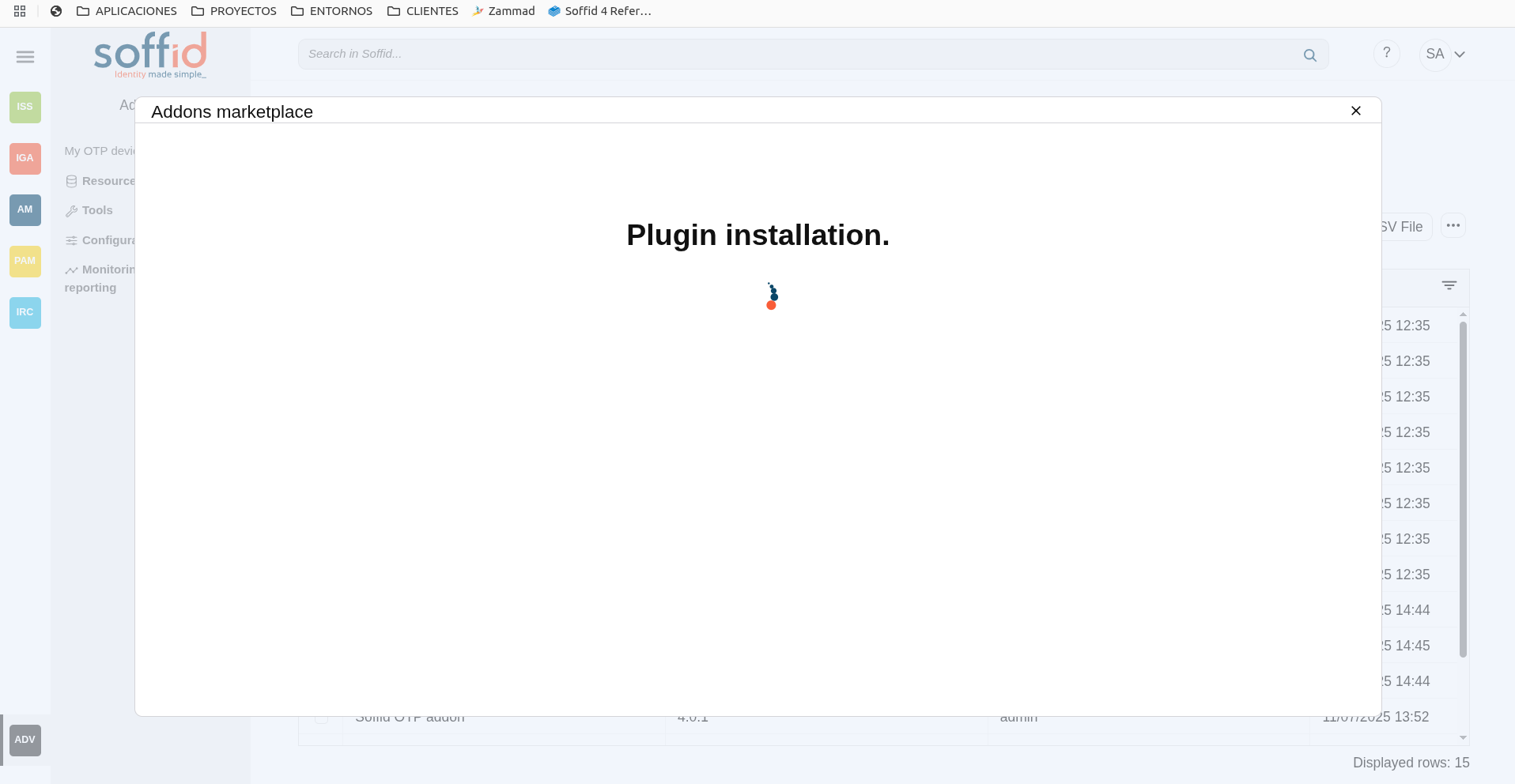
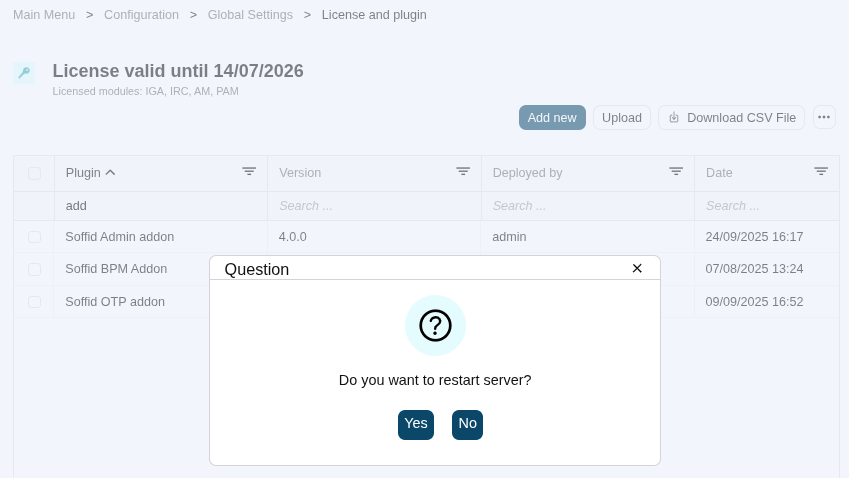
</details><span style="color: #a6d100; font-weight: bold; font-size: 18px;">4.</span> Finally, when the addon is installed, the Consola has to be **restarted**, a popup will be displayed to perform this action, you can choose to do it now or later.

<details id="bkmrk-image-3"><summary>Image</summary>

[![image.png](https://bookstack.soffid.com/uploads/images/gallery/2025-09/scaled-1680-/SrBNuFbSm6g6boI8-image.png)](https://bookstack.soffid.com/uploads/images/gallery/2025-09/SrBNuFbSm6g6boI8-image.png)

</details><span style="color: #a6d100; font-weight: bold; font-size: 18px;">5.</span> Once the Soffid console has restarted, you can **check** if the plugin was correctly uploaded on the "License and plugins" page.

`Main Menu > <span class="link" id="bkmrk-configuration-1">Configuration</span> > Global Settings > License and plugin`

<span style="color: #a6d100; font-weight: bold; font-size: 18px;">6.</span> Now, you can **configure** the addon.

### Download an upload

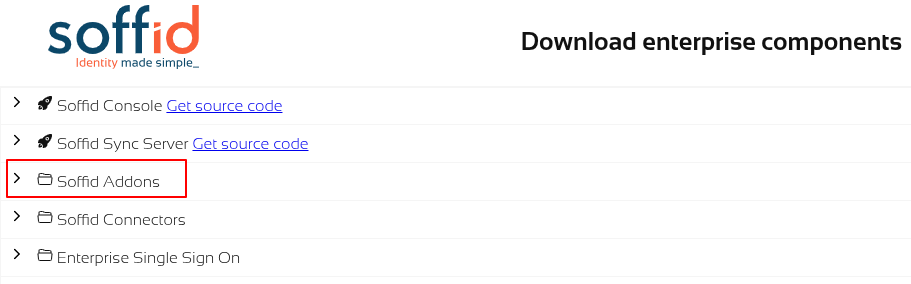
<span style="color: #a6d100; font-weight: bold; font-size: 18px;">1. </span>You could **download** the addon at the following link [http://www.soffid.com/download/enterprise/](http://www.soffid.com/download/enterprise/) if you have a Soffid user with authorization, or in the following [http://download.soffid.com/download/](http://download.soffid.com/download/) by registering.

The addons are in the Addon seccion.

<details id="bkmrk-image"><summary>Image</summary>

[![image.png](https://bookstack.soffid.com/uploads/images/gallery/2025-09/scaled-1680-/dUXAMGDA0M6XJe3A-image.png)](https://bookstack.soffid.com/uploads/images/gallery/2025-09/dUXAMGDA0M6XJe3A-image.png)

</details><span style="color: #a6d100; font-weight: bold; font-size: 18px;">2.</span> Once the addon is downloaded, please **log in** to IAM Console.

<p class="callout info">You need to be an **administrator** user of the Soffid console or a user with permission to upload addons.</p>

<p class="callout info">It is recommended to upload the addons to the **master**, this is the way to maintain updated all, master and tenants if there are.</p>

<span style="color: #a6d100; font-weight: bold; font-size: 18px;">3.</span> In the Soffid console, please **go to** the [License and plugin](https://bookstack.soffid.com/books/soffid-4-reference-guide/page/license-and-plugin "License and plugin") page.

Soffid 3:

`Main Menu > Administration > <span class="link" id="bkmrk-configuration-2">Configuration</span> > Global Settings > Plugins`

Soffid 4:

 `Main Menu > <span class="link" id="bkmrk-configuration-3">Configuration</span> > Global Settings > License and plugin`

<span style="color: #a6d100; font-weight: bold; font-size: 18px;">4.</span> Then, click the add button "**Upload**" and pick the file and click the "Select" button and Soffild will upload the addon file.

<details id="bkmrk-image-1"><summary>Image</summary>

[![image.png](https://bookstack.soffid.com/uploads/images/gallery/2025-12/scaled-1680-/oSwSvpyjPfmRtugF-image.png)](https://bookstack.soffid.com/uploads/images/gallery/2025-12/oSwSvpyjPfmRtugF-image.png)

[![image.png](https://bookstack.soffid.com/uploads/images/gallery/2025-12/scaled-1680-/1B3zySXyg11fM02e-image.png)](https://bookstack.soffid.com/uploads/images/gallery/2025-12/1B3zySXyg11fM02e-image.png)

</details><span style="color: #a6d100; font-weight: bold; font-size: 18px;">5.</span> Finally, when the addon is installed, the Consola has to be **restarted**, a popup will be displayed to perform this action, you can choose to do it now or later.

<details id="bkmrk-image-4"><summary>Image</summary>

[![image.png](https://bookstack.soffid.com/uploads/images/gallery/2025-09/scaled-1680-/SrBNuFbSm6g6boI8-image.png)](https://bookstack.soffid.com/uploads/images/gallery/2025-09/SrBNuFbSm6g6boI8-image.png)

</details><span style="color: #a6d100; font-weight: bold; font-size: 18px;">6.</span> Once the Soffid console has restarted, you can **check** if the plugin was correctly uploaded on the "License and plugins" page.

`Main Menu > <span class="link" id="bkmrk-configuration-4">Configuration</span> > Global Settings > License and plugin`

<span style="color: #a6d100; font-weight: bold; font-size: 18px;">7.</span> Now, you can **configure** the addon.