Addons getting started
Getting started
⏰ Getting started
Introduction
In addition to all the features that Soffid offers by default when installing the Console and Syncserver, it also allows you to add new features in addon format.
Soffid provides a collection of addons that can be installed to add functionalities to the Soffid Console and, in some cases, also to the Syncserver.
Addons
These are the available addons. For more information about each add-on, take a look at each one:
- Administration (scripting)
- Backup
- BPM Editor
- Federation
- Password Recovery
- Recertification
- Reporting
- Role Mining
- SCIM
- Two factor authentication (2FA)
- XACML
Installation
There are several Addons available to be installed to add functionalities to the Soffid Console. These addons can be found at: download opensource or in download enterprise in the Addons section.
In Soffid 4, it is no longer necessary to upload addons to the Console. A new marketplace feature has been included in the license and plugin page to download addons directly from there.
If you want to know how to install an addon, please refer to the following page:
For further information, please consult the Licence and plugin page.
How to install and addon in Soffid 3 and 4
Installation
Introduction
To use an addon in Soffid, you must download and install it in the Console. There are two ways to do this.
1. The first option is to use the Soffid 4 marketplace. You can download and upload it directly from the Licence and plugin page.
2. The second option is to download the file from the Soffid download page and then upload it to the Console.
Soffid 4 marketplace
Soffid 4 allows you to install and update plugins through the new Addons marketplace feature.
To access the marketplace, you must have a valid token to use Soffid and have configured the Console via https. Please check the License and plugin page.
1. Please log in to IAM Console.
You need to be an administrator user of the Soffid console or a user with permission to upload addons.
It is recommended to upload the addons to the master, this is the way to maintain updated all, master and tenants if there are.
2. In the Soffid console, please go to the License and plugin page.
3. Then, click the add button "Add new" button, open the "Soffid Addons" secction and select the "Instlla addon" option, Soffild will upload the addon file.
Image
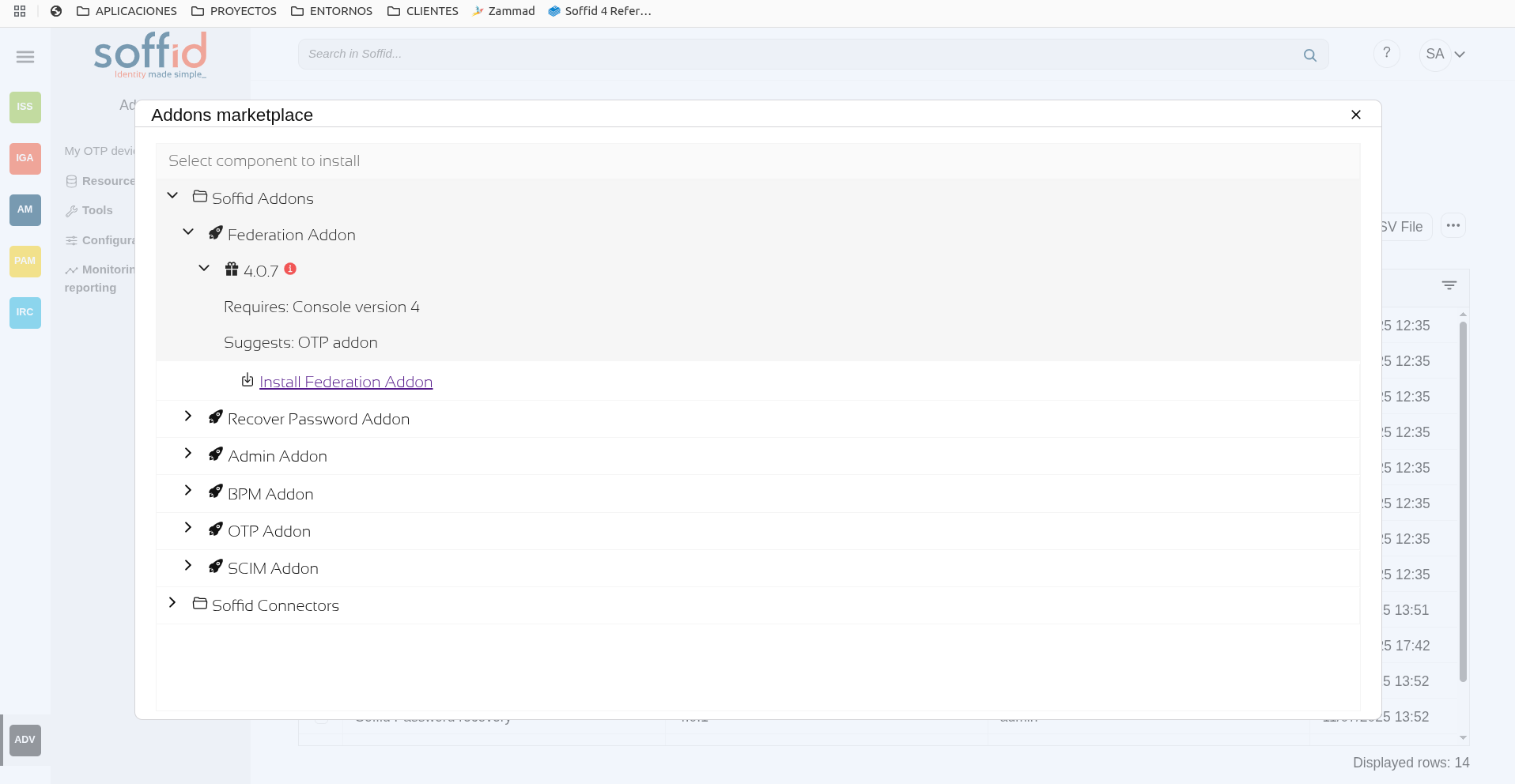
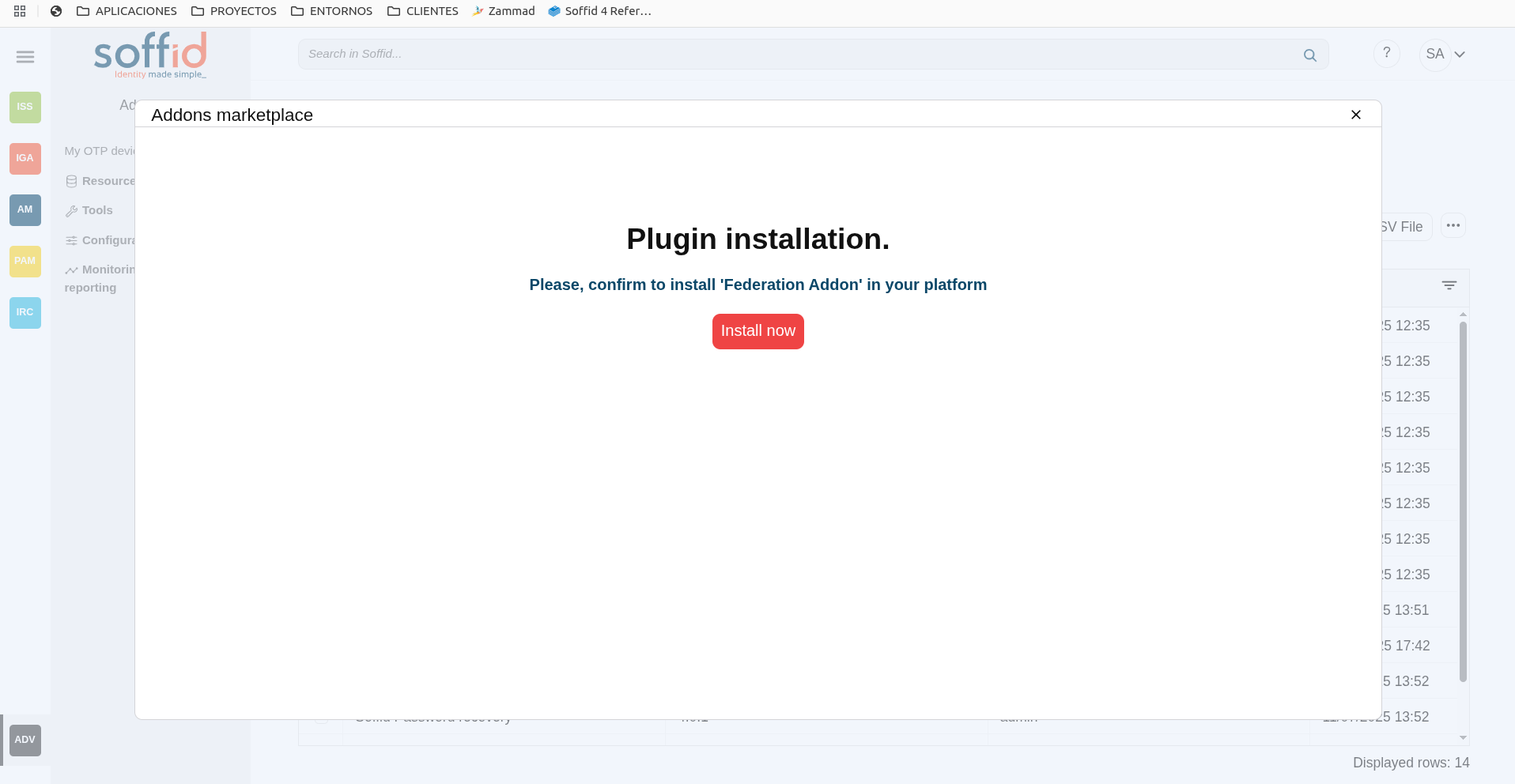
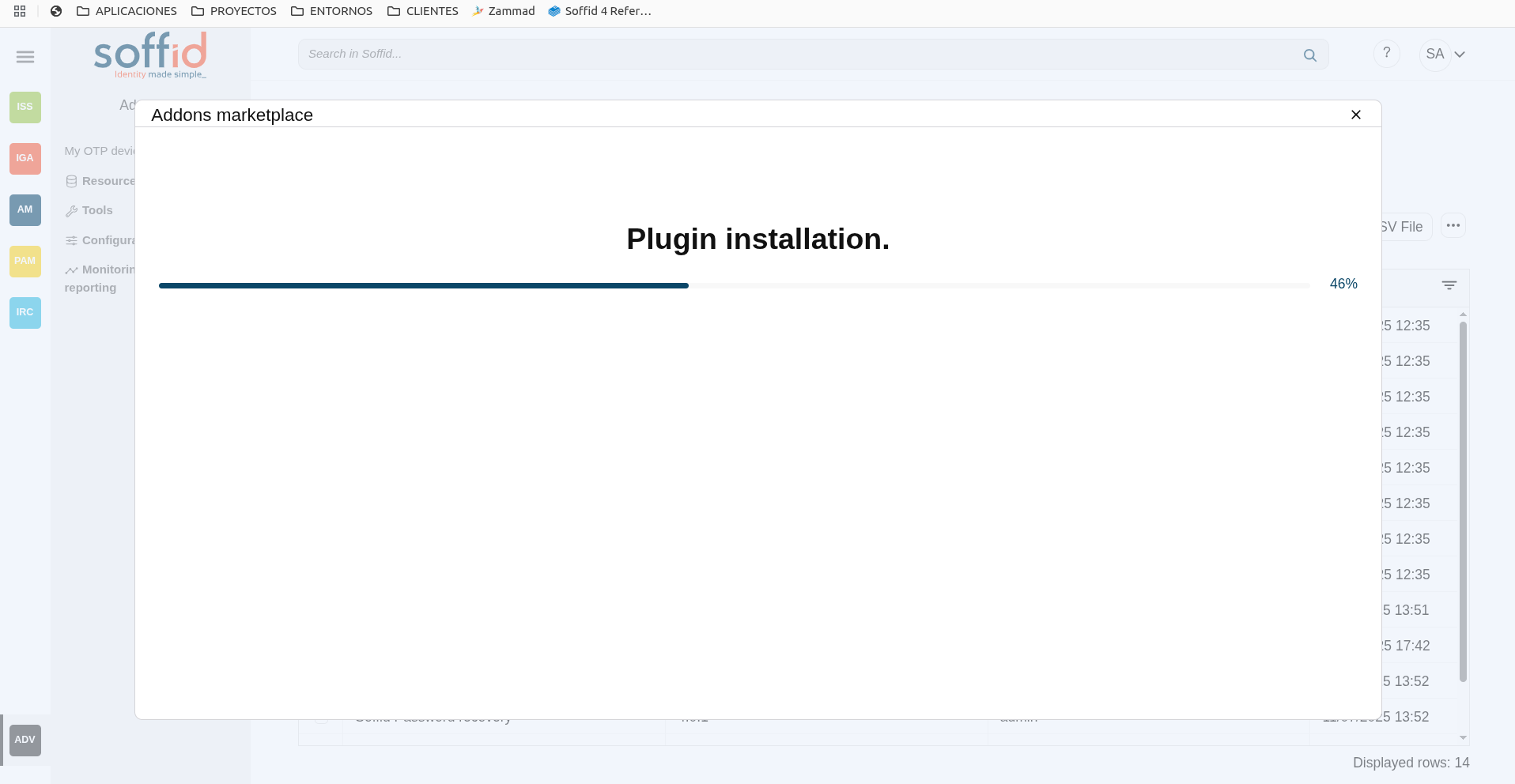
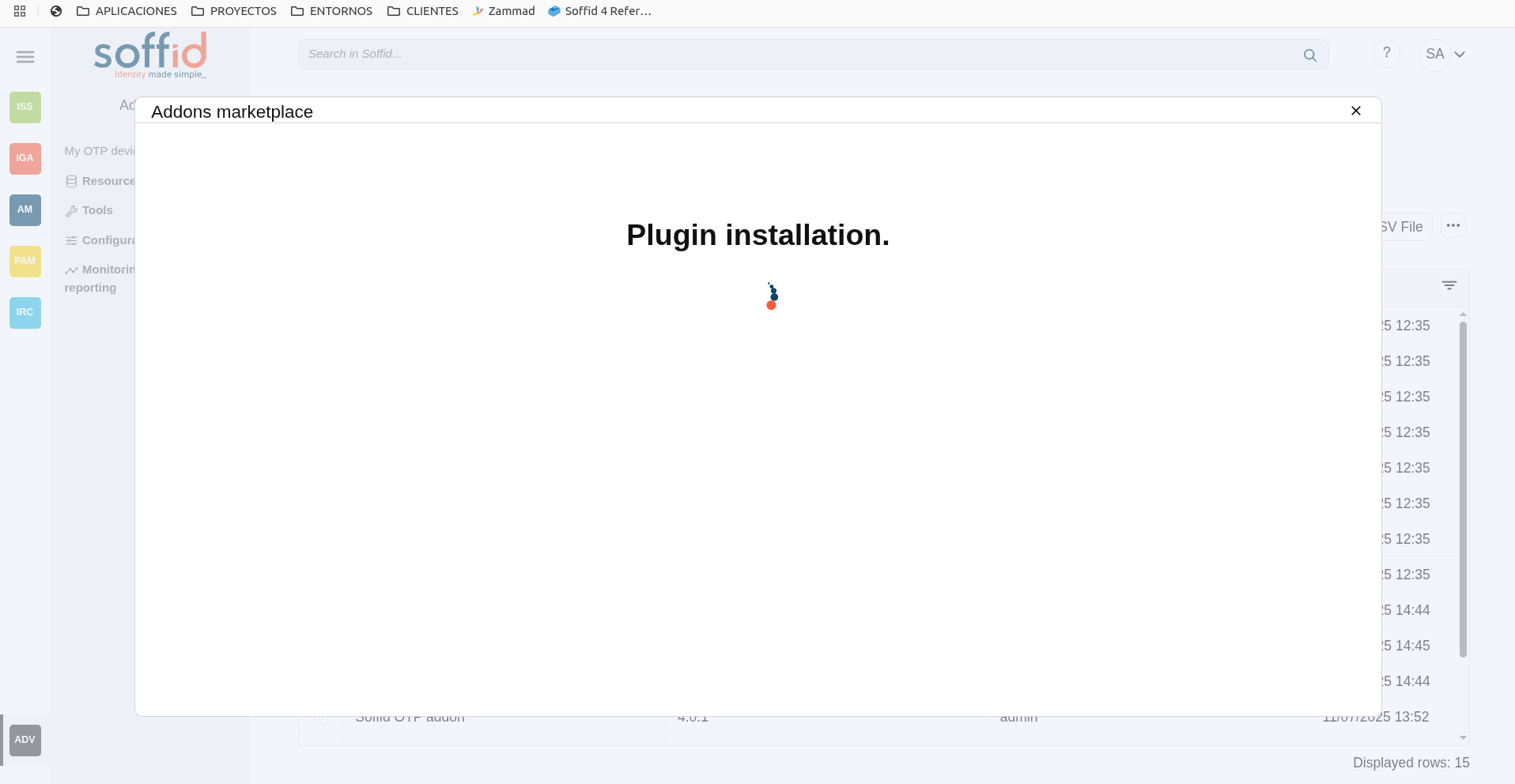
4. Finally, when the addon is installed, the Consola has to be restarted, a popup will be displayed to perform this action, you can choose to do it now or later.
Image
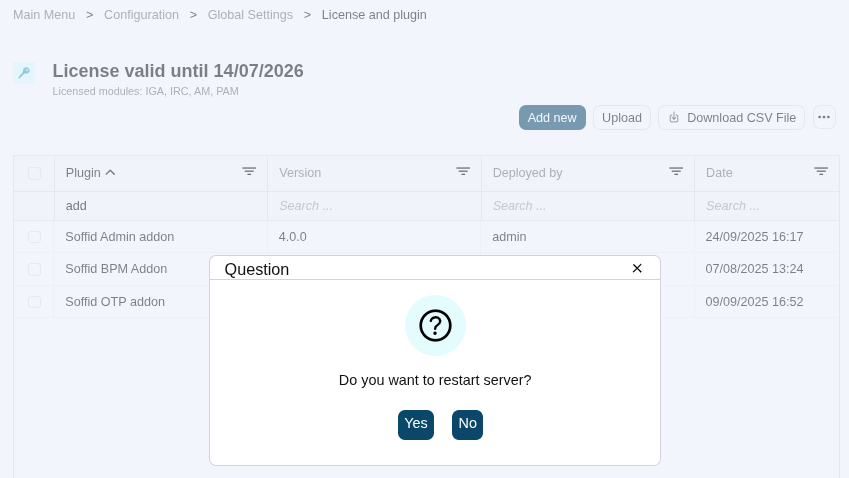
5. Once the Soffid console has restarted, you can check if the plugin was correctly uploaded on the "License and plugins" page.
6. Now, you can configure the addon.
Download an upload
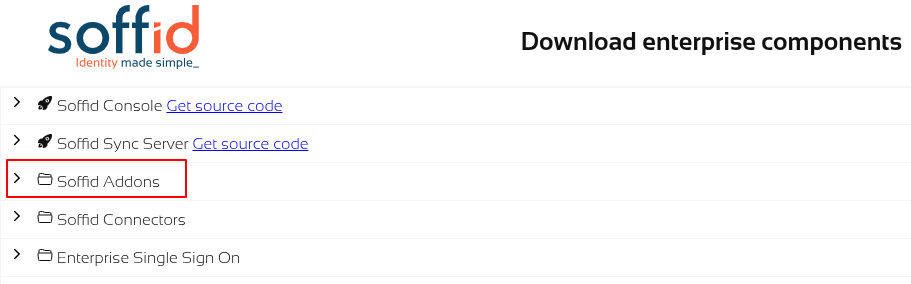
1. You could download the addon at the following link http://www.soffid.com/download/enterprise/ if you have a Soffid user with authorization, or in the following http://download.soffid.com/download/ by registering.
The addons are in the Addon seccion.
Image
2. Once the addon is downloaded, please log in to IAM Console.
You need to be an administrator user of the Soffid console or a user with permission to upload addons.
It is recommended to upload the addons to the master, this is the way to maintain updated all, master and tenants if there are.
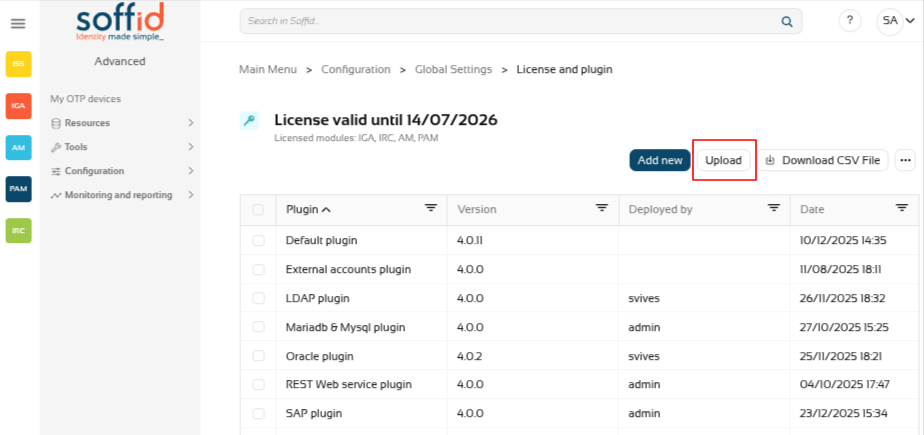
3. In the Soffid console, please go to the License and plugin page.
Soffid 3:
Soffid 4:
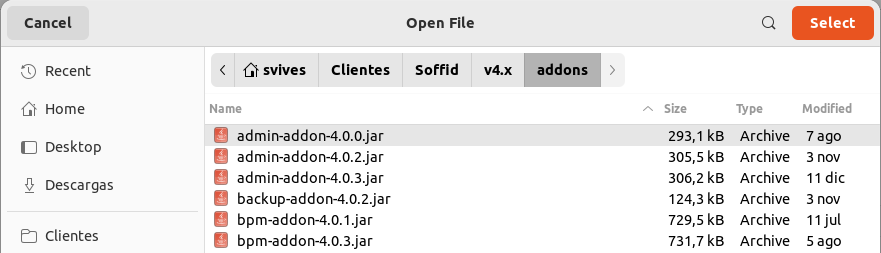
4. Then, click the add button "Upload" and pick the file and click the "Select" button and Soffild will upload the addon file.
Image
5. Finally, when the addon is installed, the Consola has to be restarted, a popup will be displayed to perform this action, you can choose to do it now or later.
Image
6. Once the Soffid console has restarted, you can check if the plugin was correctly uploaded on the "License and plugins" page.
7. Now, you can configure the addon.